

A small batch file instead of pulling cables. Simply activate and deactivate the monitor in Windows.
I have two monitors on my computer, which is good for work, but the second one gets in the way when gaming. So far, I’ve always pulled the cable, as it’s a USB monitor and doesn’t have a classic on/off switch. That’s why I had the idea of simply deactivating a display via software and quickly reactivating it after gaming.
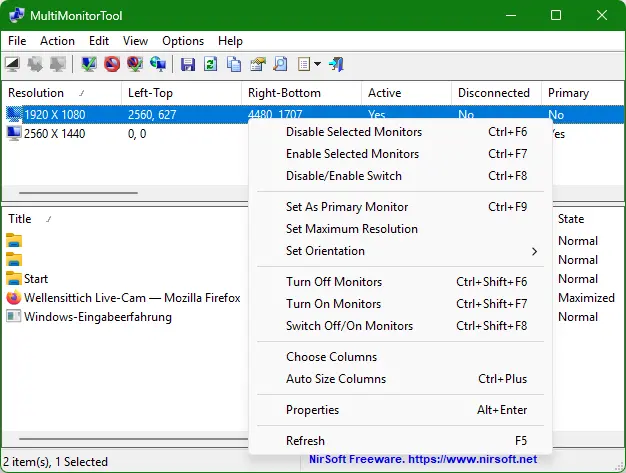
And yes, it is possible, in conjunction with the free “MultiMonitorTool“.
About the application
We create two batch files with a text editor of our choice:
Turn off monitor
@echo off cd /d "%~dp0" MultiMonitorTool.exe /disable 2
Turn on monitor
@echo off cd /d "%~dp0" MultiMonitorTool.exe /enable 2
Screen number
The number we specify here is the number we also find in the settings:

In most cases, this is the correct number, otherwise the number can also be found in MultiMonitorTool: 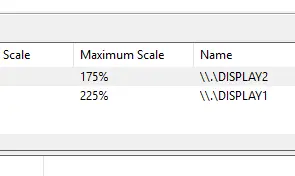
The result
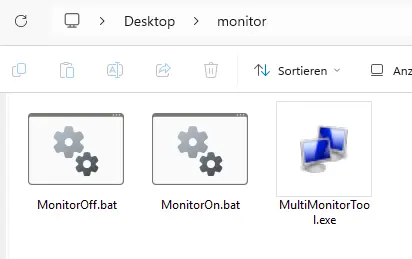
Once everything is done, we can save the files in the same folder as the tool. Activation/deactivation is now done simply by double-clicking.
Conclusion
Great thing, saves me having to plug and unplug.