
Synchronise Outlook with Google, iCloud, GMX, CardDav and CalDAV.
Unfortunately, Microsoft Outlook does not natively support the open CalDAV standard. So, if you want to synchronise a calendar from Nextcloud, GMX, Web.de or another CalDAV provider with Outlook, for example, you will need additional software.
The free and open-source Outlook CalDAV Synchroniser handles this task.
The add-in synchronises calendars and appointments in both directions and can also synchronise tasks and contacts. However, this requires the classic version of Outlook for Windows – the add-in does not work with the new Outlook.
Video tutorial
Important: for Outlook Classic only
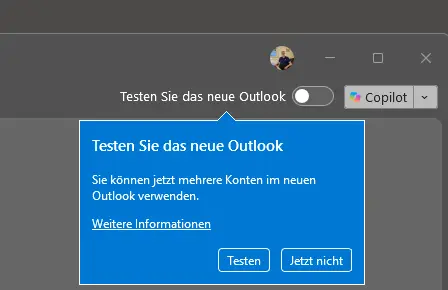
The instructions shown here only work for Outlook Classic; the add-in only works with this version.
Download and install CalDavSynchronizer
Go to the download page to download the software. Simply unzip the file and start the installation.

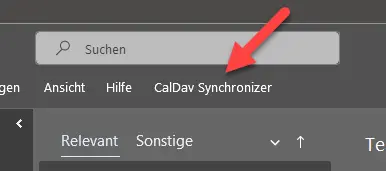
The software is automatically integrated into Outlook and appears at the top of the menu bar.
Setting up synchronisation
We will now set up a new profile. The software is set to English by default, but you can change this to German in the settings.
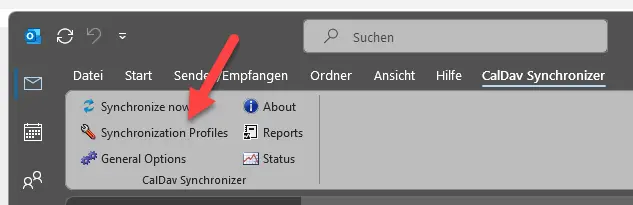
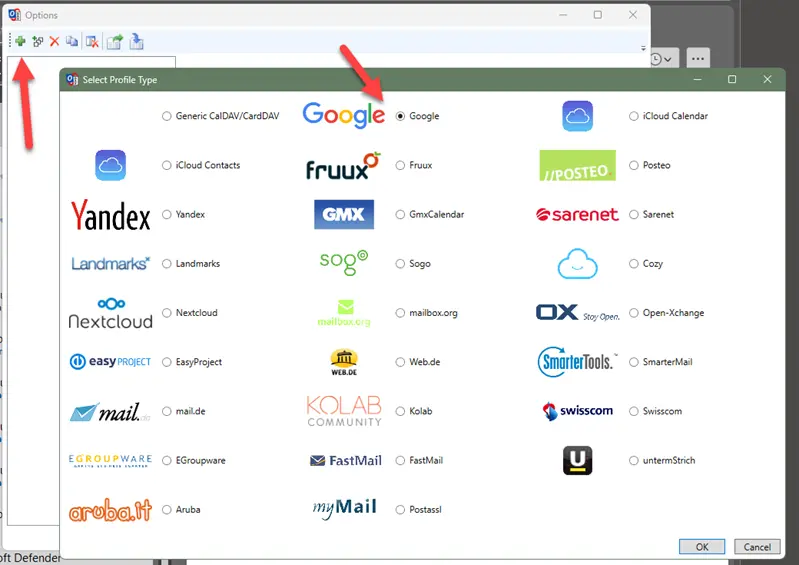
We click on the plus icon, and a long list of supported providers appears. As well as Google, which we’ll be using here, services such as iCloud, GMX, Nextcloud and generic CalDAV and CardDAV providers are also supported.
We now enter a name and specify the folder. It must be a calendar or contacts folder. Depending on your selection, either contacts or calendars will be synchronised. We also enter an email address, then test the settings.
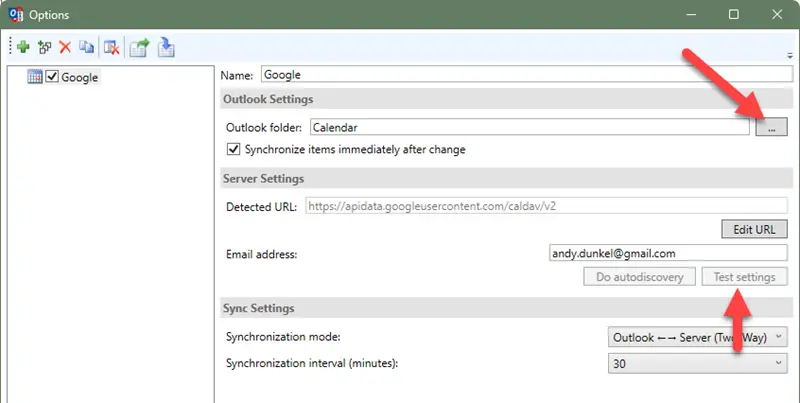
Here, we can also specify how we want to synchronise – one-way, two-way – and the synchronisation interval.
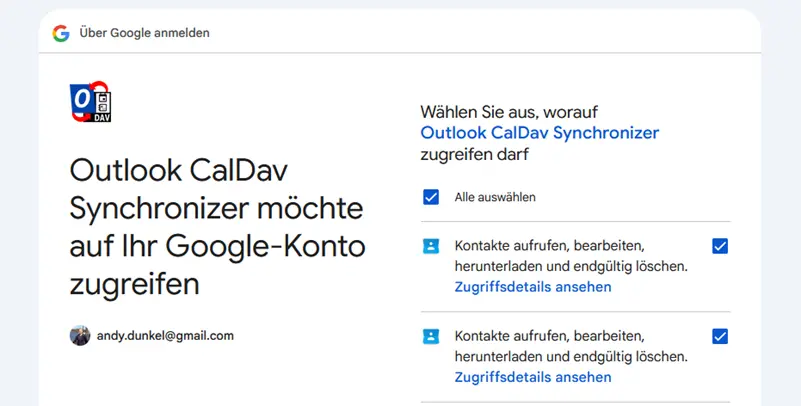
A prompt, or the Google login window, will appear; confirm access here.
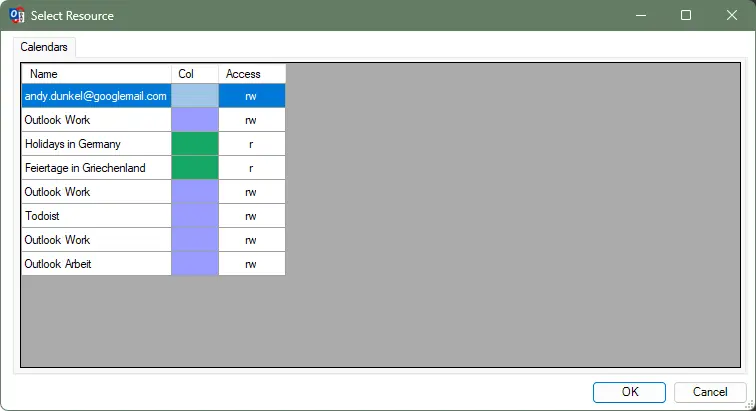
The calendars available on the server will then be displayed. Here, select the item you wish to synchronise.
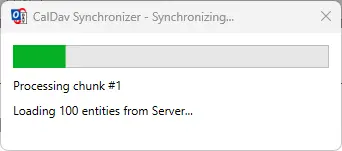
The first synchronisation starts straight away.
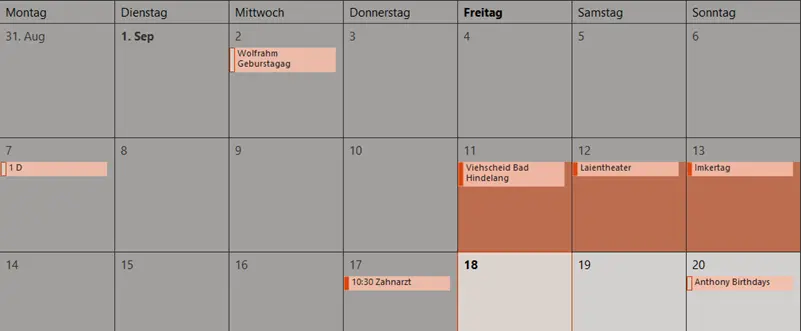
Done! Our entries should now appear in the calendar.
Synchronise contacts
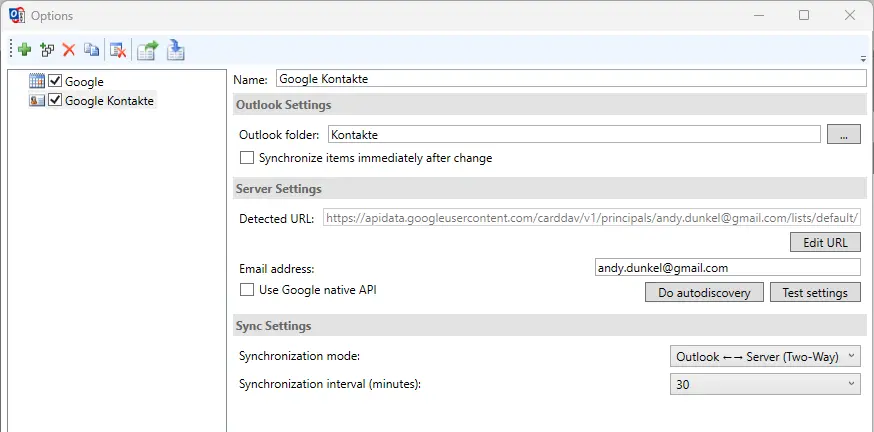
As mentioned earlier, contacts can also be synchronised. To do this, we select the Google account again, but this time choose a ‘Contacts’ folder. You’ll see that the icon on the left-hand side changes.
Conclusion
The Outlook CalDAV Synchroniser closes an annoying gap in classic Outlook. Set-up is quick and easy, and as well as calendars, you can also synchronise contacts and tasks. The support for numerous providers is particularly handy, as is the option to specify the direction and frequency of the synchronisation yourself.
The software is free and open source. The only downside is that the add-in only works with Outlook Classic. However, for those who continue to use it, this provides a straightforward solution for synchronising CalDAV and CardDAV data.

- Für 1 Person.
- Gleichzeitig auf bis zu 5 Geräten nutzbar
- Funktioniert auf PC, Mac, iPhone, iPad sowie Android-Smartphones und -Tablets¹ ²

- MICROSOFT 365 FAMILY | bis zu 6TB Cloudspeicher, erweiterte Sicherheit für deine Daten und Geräte...
- PRODUKTIVITÄT | In Word, Excel², PowerPoint und OneNote kannst du mit Microsoft Copilot¹ neu...
- KREATIVITÄT | Erstelle, gestalte und bearbeite wann und wo du es brauchst, mit Microsoft Designer...

- Essentials für mehr Produktivität: Office Home 2024.
- Klassische Desktop-Versionen von Word, Excel, PowerPoint und OneNote.
- Zur Installation und Nutzung auf einem PC oder Mac.