
How to turn on your computer while on the go. I travel from time to time, often by train. I take my Linux laptop with me. I can do most things with it, but not everything. My workhorse, a desktop computer, is at home. All my data and programmes are on it.
Turning on your computer while on the go
When I’m on the go, I can access it using Remote Desktop and VPN. Now, I don’t want the thing running all the time and consuming electricity, so I’ve been using an automatic switch-on with a Wi-Fi socket. As soon as the computer gets power, it switches on.
It works, but a Wi-Fi socket with its own app and manufacturer cloud is a bit of a thing. With this kind of stuff, you never know exactly what security gaps and spying you’re letting into your network. That’s why I’ve now tried Wake-On-Lan.
What is Wake-On-Lan
Wake-on-LAN (WoL) is a function that allows you to turn on a computer that is switched off or in sleep mode via the network. This requires a wired connection with a network cable. A special “magic packet” is sent via the local network or the internet.
How do I activate Wake-On-Lan?
The function is activated in the BIOS/UEFI. Here are two examples, one from Dell:  Or here on my desktop, where you can see that the function is sometimes called “Power On By PCI-E” rather than Wake-On-Lan.

Once the function is activated, the computer should turn on. This does not always work and should be tested accordingly; more on this later in the article.
Turning on the computer via Fritzbox
If you have a Fritzbox, you can use it to turn on your computer. To do this, go to the Network section. Here, we now search for the computer.

In the Details (Edit) and LAN sections, you will find a button to start the computer. As soon as you press this button, the FritzBox sends the magic packet and the computer should start up.

Starting with Windows
Under Windows, the free tool WakeMeOnLan from NirSoft is very well suited for starting a computer via Wake-on-LAN.
The programme can scan the network automatically (the computer must be running for this) or we can add the PC manually using its MAC address. Right-clicking on the desired computer and selecting “Wake Up Selected Computers” is then sufficient to send the magic packet. The tool is portable, requires no installation and does not need a cloud or additional services.

Getting started with Linux
There is a package available for Linux.
sudo apt install wakeonlan wakeonlan B8:CA:3A:77:B7:61

Mac address of the computer
The Mac address can be found in the detailed view of the Fritzbox for the device or in Windows. Here, we enter ipconfig /all in the command prompt:

Problems and notes
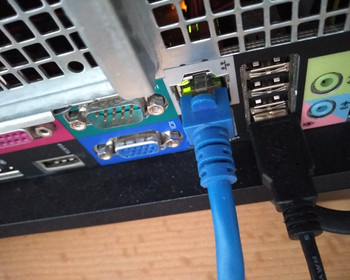
How well it works in practice depends a little on the type of computer and how it shuts down. My Dell desktop switches off completely when it shuts down; you can see that the power supply LED is no longer lit, and no LEDs are lit on the LAN either. Switching it on does not work this way. Here, Wake-On-Lan only works when the computer is in standby or hibernation mode. In short, check whether the network LEDs are still lit or flashing when the computer is switched off.  It works without any problems on my other desktop computer. Something lights up inside when it is switched off. Wake-on-LAN works without any problems here.

Conclusion
Wake-on-LAN is a practical solution for only turning on your home computer when you really need it. When it comes to power consumption, let’s be honest: the PC draws a little power in standby mode, and a Wi-Fi socket does the same – so at the end of the day, there shouldn’t be much difference.
The real advantage of WoL is that no additional hardware, no app and no manufacturer cloud are required. The disadvantage is that not all hardware works properly with it and some computers can only be woken up from standby or hibernation mode. But when it works, Wake-on-LAN is an elegant and pleasantly unobtrusive solution.